How to Set Up Starwind Pro in Your Project
A step-by-step guide to installing and configuring Starwind Pro components in your Astro project. Get started with premium components in minutes.

Starwind Pro gives you access to premium, production-ready components that you can drop into your Astro project. This guide walks you through the setup process so you can start using Pro components in just a few minutes.
Prerequisites
Before you begin, make sure you have:
- An Astro project (you can create one with
npm create astro@latest) - A Starwind Pro license (purchased from the website)
- Node.js 20+ installed
INFO
You can still use free blocks without a license, but you will need to purchase a pro license to use premium components.
Choose Your Setup Method
- CLI Setup (Recommended) — Run a single command to configure everything automatically
- Manual Setup — Configure the registry yourself if you prefer full control
Both methods end up at Step 2: Get Your License Key.
Step 1: Initialize Starwind Pro
CLI Setup (Recommended)
From your project’s root directory, run the following command to configure your project for Starwind Pro:
npx starwind@latest init --proThis command sets up the Starwind Pro shadcn registry alongside the free components, allowing you to install premium components.
INFO
If you haven’t set up Starwind UI yet, this command will initialize the base configuration in addition to Starwind Pro setup.
Once complete, skip to Step 2.
Manual Setup
You’ll first need Starwind UI set up in your project, which you can find instructions for in the Starwind UI docs.
Starwind Pro is implemented as a private shadcn registry, so in order to set things up manually you’ll need to create a components.json file if it doesn’t already exist.
Then open your components.json and add the following to the registries object:
{ "registries": { "@starwind-pro": { "url": "https://pro.starwind.dev/r/{name}", "headers": { "Authorization": "Bearer ${STARWIND_LICENSE_KEY}" } } }}Your full components.json should look something like this:
{ "$schema": "https://ui.shadcn.com/schema.json", "registries": { "@starwind-pro": { "url": "https://pro.starwind.dev/r/{name}", "headers": { "Authorization": "Bearer ${STARWIND_LICENSE_KEY}" } } }, "aliases": { "components": "@/components", "utils": "@/lib/utils" }, "tailwind": { "config": "", "css": "src/styles/starwind.css", "baseColor": "neutral", "cssVariables": true }, "style": "default", "rsc": true}Next, create a .env.local file in your project root and add your license key configuration:
# Starwind Pro registry setupSTARWIND_LICENSE_KEY=your_starwind_pro_license_keyReplace your_starwind_pro_license_key with your actual license key if you have pro access (see Step 3 for how to get it). Note that a valid license key is not required for free components.
CAUTION
Never commit your .env.local file to version control. Make sure it’s listed in your .gitignore file.
Step 2: Get Your License Key
There are three ways to retrieve your Starwind Pro license key. Once retrieved, put it in the .env.local file.
Option A: Get Your License Key Here
If you’re signed in with Starwind Pro access, you can fetch your license key directly:
Option B: From the Account Dashboard
- Sign in to your account and go to pro.starwind.dev/account/
- Scroll down to the “Getting Started with Starwind Pro” section
- Click the “Get License Key” button
- Your license key will automatically appear in the code block below
Option C: From the Polar Dashboard
- Go to your account page at pro.starwind.dev/account/
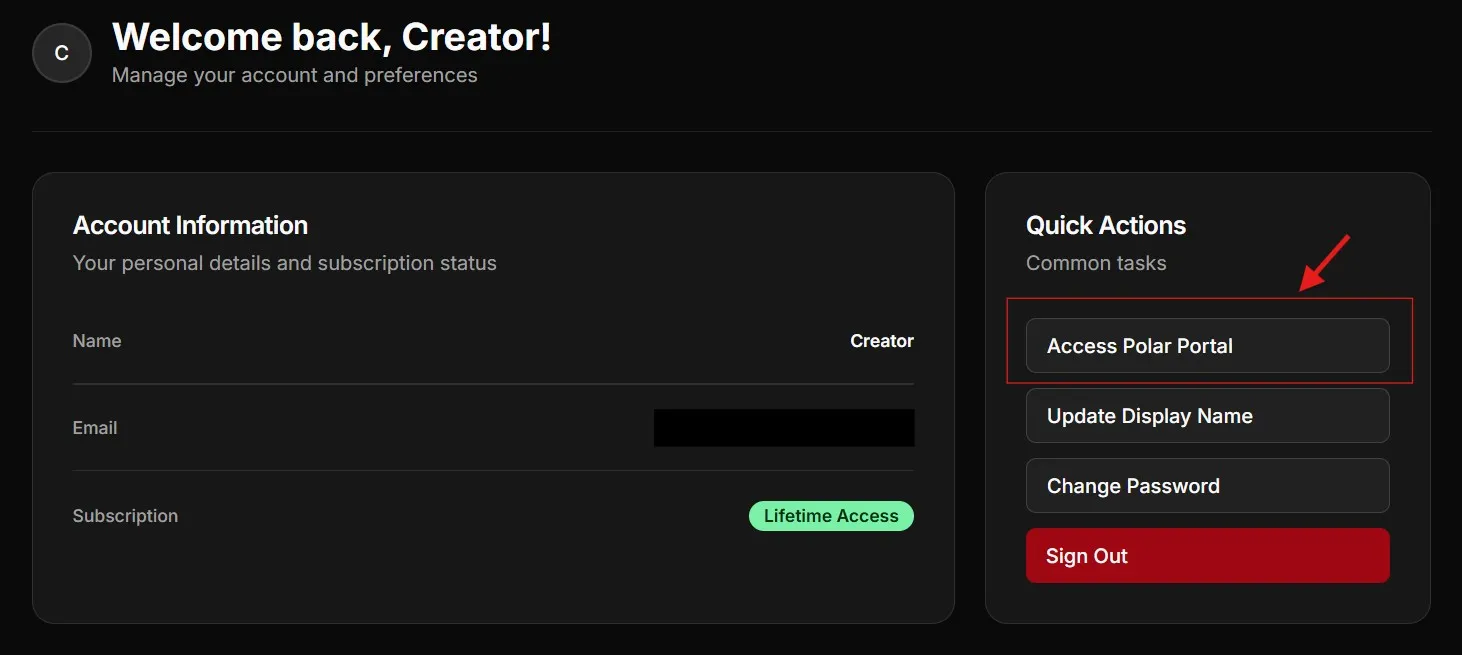
- Click “Access Polar Portal” in the Quick Actions card
- Find your license key in the Polar customer portal
TIP
Your license key is tied to your account. Keep it secure and don’t share it publicly.
Step 3: Install Components
You’re all set! Now you can browse the component library and install any Pro component using the CLI.
The install command follows this pattern:
npx starwind@latest add @starwind-pro/component-nameINFO
You can find the exact install command on each component’s demo block. Just click the copy button and paste it into your terminal in the base of your project directory.
Troubleshooting
”Invalid license key” error
- Double-check that your
.env.localfile is in the project root - Verify the license key is copied correctly without extra spaces
- Make sure you’re using the correct environment variable name:
STARWIND_LICENSE_KEY
Components not installing
- Ensure you ran
npx starwind@latest init --profirst - Check that your license key is valid and active
- Make sure you run the install command from the base of your project directory
Next Steps
Now that Starwind Pro is set up, you can:
- Browse the component library to see all available components
- Join our community for support and updates
Happy building! 🚀